Why images are slowing down your website
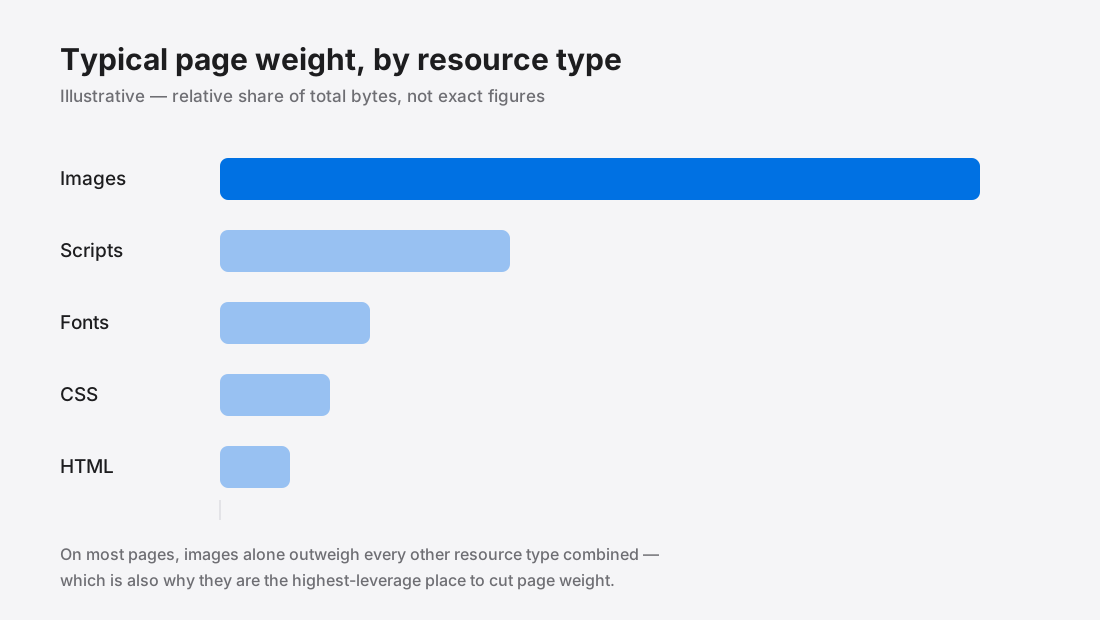
On a typical content site, images account for more total bytes than scripts, stylesheets, fonts and markup put together1. That makes them the least glamorous and most effective performance work available to you.
The arithmetic nobody does
Open your own site on a phone, on a mediocre connection, and count the seconds before the main image appears. That number is what your visitors experience, and it is almost never the number you see on your laptop on office wifi.
A single unoptimised photograph straight from a phone camera is commonly 4–6 MB. On a 5 Mbps mobile connection that is roughly eight seconds for one image. Put four of them on a page and you have a page nobody waits for.
The same photograph, resized to the width it is actually displayed at and compressed sensibly, is 150–250 KB. Same picture, visually identical on screen, roughly one twentieth of the weight.
Why Google cares
Largest Contentful Paint measures how long until the biggest visible element finishes rendering2. On most pages that element is an image — a hero, a product shot, an article header.
LCP is part of Core Web Vitals3, and Core Web Vitals feed into search ranking4. Critically, Google measures it on real visitors through the Chrome User Experience Report5, not in a lab. Your fast laptop does not count. The median of everyone who actually visited does.
Google's own threshold for a good LCP is 2.5 seconds2. A 4 MB hero image on mobile will not get there, whatever else you do.
The three fixes, in order of payoff
1. Resize to what is displayed. This is the biggest single win and the one most often skipped. If your content column is 800 pixels wide, serving a 4000-pixel image means 96% of the data is discarded by the browser after being downloaded. Pixel count scales with area — halving the width quarters the file.
2. Use a modern format. WebP is 25–35% smaller than JPEG at the same visual quality6 and is supported by every current browser7. This is close to free — see the format comparison for when AVIF is worth the extra step.
3. Compress sensibly. Quality around 75 is invisible in normal viewing and dramatically lighter than the 95 most export presets default to.
Do all three and a 4 MB image becomes roughly 120 KB. Do only the third and it becomes 1.5 MB, which is still too heavy.
The mistakes that undo the work
- Lazy-loading the hero.
loading="lazy"belongs on everything below the fold and nowhere near your LCP element8. Lazy-loading the hero actively makes the metric worse — how to lazy-load without breaking LCP covers the detail. - Missing width and height. Without them the browser cannot reserve space, so content jumps as images arrive. That is Cumulative Layout Shift9, and it is also a ranking signal — fixing image-caused layout shift walks through it.
- Letting the CMS regenerate from the original. Many platforms build their own derivatives from whatever you uploaded. Upload the optimised file as the source, not the camera original.
- No cache headers. A perfectly optimised image re-downloaded on every page view is still wasted bandwidth.
Measuring it on your own site, properly
Before changing anything, get a number you trust. Lab tools like Lighthouse run on a simulated connection from one machine, which is useful for diagnosis and misleading as a verdict — it is one sample, from one place, on hardware that is probably better than your visitors'.
The number that actually affects you is field data: what real visitors experienced, gathered through the Chrome User Experience Report5. Search Console reports it under Core Web Vitals, grouped by URL pattern. Lab and field frequently disagree, and when they do, the field data is the one that counts.
A practical order: use field data to decide whether you have a problem and which page templates have it, then use a lab run on one of those pages to work out what is causing it. Using Lighthouse alone tends to produce a lot of work on pages nobody visits.
What good actually looks like in bytes
Rules of thumb worth having, because “optimise your images” is not actionable:
- Hero image: 100–200 KB. This is your LCP element and worth its budget.
- In-article photo: 40–100 KB.
- Thumbnail or card image: 10–30 KB.
- Whole page, images included: under 1 MB is comfortable; over 3 MB is a problem on mobile.
If any single image on a page is over 500 KB, that is where to start, and resizing will almost certainly be the fix rather than compression. Choosing the right dimensions covers how to work out the width an image actually needs — the saving is quadratic, so it dwarfs anything the quality slider can do.
The order to do the work in
Sequence matters, because doing these out of order means redoing them:
- Find the heaviest pages from field data, not from a hunch.
- Resize before compressing. Compressing an oversized image just means compressing data you were about to throw away — and then compressing again after you resize, stacking the loss.
- Convert format once, from the original master.
- Set the quality or, better, a size budget per image role. Compressing to an exact size explains why a budget beats a fixed quality number across a mixed batch.
- Fix the markup — width and height, loading, fetchpriority.
- Re-measure the field data after a few weeks. It is a 28-day rolling window, so it does not move immediately.
That last point catches people out. Deploying a fix and checking Search Console the next morning shows nothing, because most of the window is still made of pre-fix visits.
References
- Web Almanac: MediaHTTP Archive↑
- Largest Contentful Paint (LCP)web.dev↑
- Web Vitalsweb.dev↑
- Understanding page experience in Google Search resultsGoogle Search Central↑
- Chrome UX ReportChrome for Developers↑
- WebP Compression StudyGoogle Developers↑
- WebP image format — browser supportCan I use↑
- Lazy loadingMDN Web Docs↑
- Cumulative Layout Shift (CLS)web.dev↑