How to compress an image to an exact file size
Plenty of systems state their limits in bytes: a 240 KB cap on a form, a 2 MB attachment limit, a 500 KB budget for a hero image. Quality sliders do not speak that language, which is why hitting a specific number by hand turns into guesswork.
Why guessing goes badly
The relationship between a quality setting and the resulting file size is not linear, and it is different for every image. A busy photograph and a smooth one exported at the same quality can differ several-fold in size.
So the manual loop — export, check, adjust, export again — is genuinely slow, and it has a failure mode people fall into constantly: stopping at the first value that fits. If 60 gets you under the limit, you ship 60, without ever discovering that 78 also fits and looks considerably better.
Worse is iterating on the output rather than the original, re-compressing an already-compressed file each round. That stacks generation loss on every pass — see lossy versus lossless for why that damage accumulates.
What a target-size mode does instead
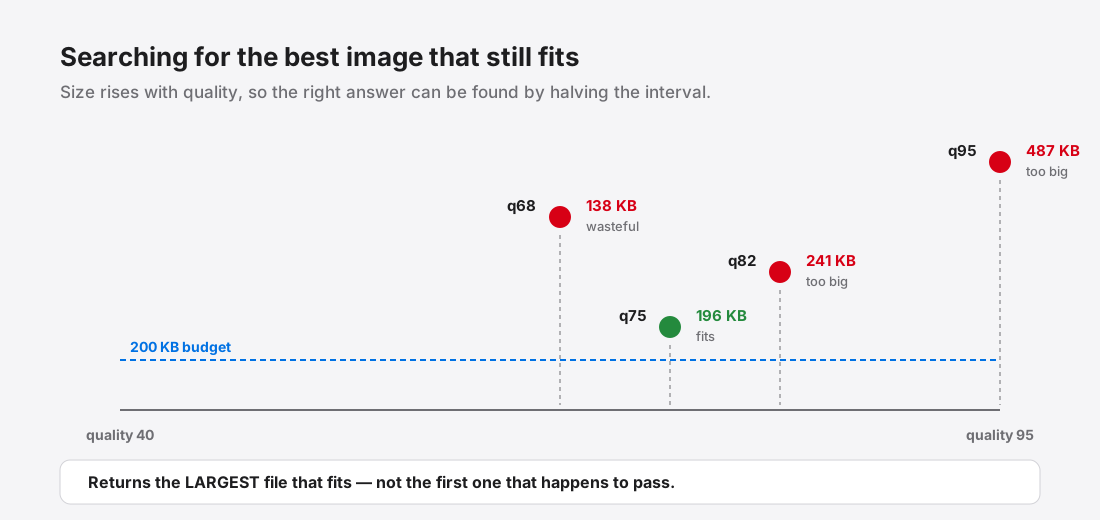
Because file size increases monotonically with quality — higher quality is always a bigger file for the same image — the problem can be solved by binary search1 rather than trial and error.
Encode at the top of the range and check the size. Too big, halve the interval downward; small enough, try higher. Each round halves the remaining search space, so roughly seven encodes narrow a full quality range to within a percent or two.
The important part is the answer it returns: the largest file that still fits your budget, meaning the best-looking result the limit permits. That is the difference between “under 240 KB” and “the best image that is under 240 KB”.
PixSqueeze does this search in your browser, which is also why it can do it at all without a round trip per attempt — every probe is local.
Resize before you set a target
A target-size search only has the quality axis to work with. If the image is far larger than it needs to be, the search is forced to drive quality down brutally to compensate — and you get a soft, artefact-heavy image that happens to be the right size.
Fix the dimensions first. Getting the pixel count right removes most of the bytes without touching quality at all, leaving the search a much easier job. Choosing dimensions covers how to pick a width; the short version is that halving the width quarters the data.
An image resized correctly and then targeted at 200 KB looks dramatically better than the original resolution squeezed to the same 200 KB.
Aim below the limit, not at it
If the cap is 240 KB, target somewhere around 200. Two reasons.
First, some systems measure differently than you do — counting the encoded upload rather than the file on disk, which is slightly larger. Landing at 239 KB risks a rejection you will not understand.
Second, where there is a minimum as well as a maximum, sitting near either edge is fragile. Document photo requirements frequently specify both, and the middle of the range is the safe place to be.
Finally, verify against the file itself. Check the size on disk, in your file manager, after export — not the estimate shown in an editor's preview, which is often approximate.
When a target is the wrong tool
A size target is right when an external limit is imposed on you. It is the wrong instrument when you are optimising a page.
For a website, the budget worth managing is the total page weight, not any single image, and different images on the page deserve different allocations. Forcing every image to an identical size over-compresses the ones that need detail and wastes bytes on the ones that do not. Why images slow sites down takes the whole-page view.
Why your file manager and the upload form may disagree
A frustrating failure mode: your file is 198 KB on disk, the limit is 200 KB, and the upload is still rejected. Usually one of three things is happening.
Kilobytes versus kibibytes. 200 KB can mean 200,000 bytes or 204,800 bytes depending on who is counting. Operating systems and web forms do not always agree. Staying a few percent under the limit makes the ambiguity irrelevant.
Encoding overhead. Some forms measure the encoded upload rather than the raw file. Base64 encoding, used in some upload paths, inflates data by roughly a third.
The form is measuring something else. A few systems apply the limit after their own processing — re-encoding or adding a watermark — so the number they check is not the number you produced.
All three point the same way: target comfortably below the stated cap rather than right at it. If the limit is 200 KB, aim for 170–180.
References
- Binary search algorithmWikipedia↑