Lossy vs lossless compression
Every image format makes one decision before anything else: may it throw information away? Everything else — file size, quality, which format suits which picture — follows from that single choice.
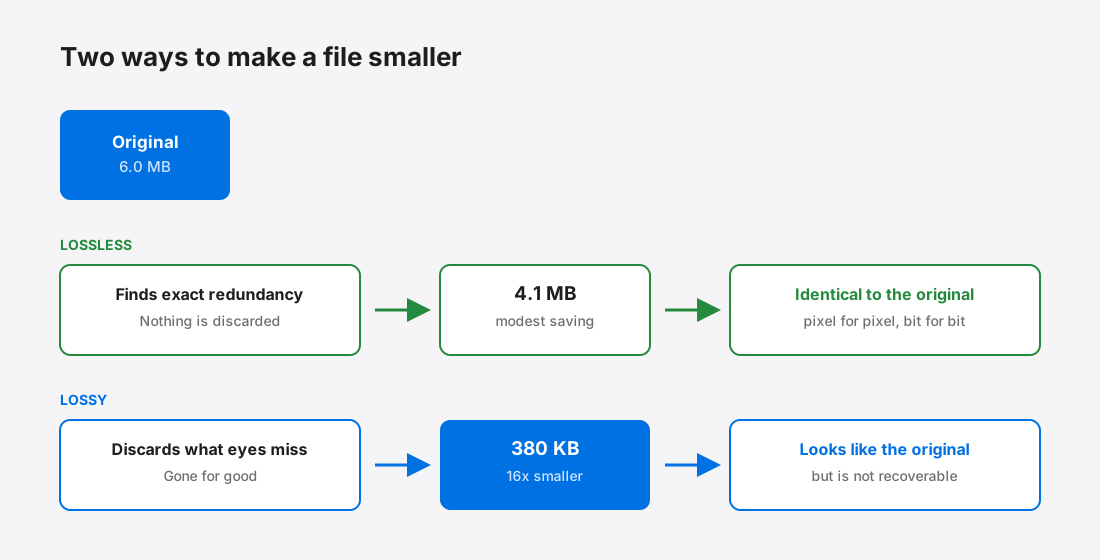
Lossless: smaller file, identical pixels
Lossless compression finds redundancy and encodes it more efficiently. Decompress the result and you get back the exact original, pixel for pixel, bit for bit1.
The classic example is a run of identical pixels. A 500-pixel band of the same flat blue can be stored as “this blue, 500 times” instead of five hundred separate values. PNG does a more sophisticated version of this, predicting each pixel from its neighbours and storing only the difference2.
This works brilliantly on images with large flat areas and hard edges — screenshots, logos, diagrams, line art, anything with text in it. It works poorly on photographs, because in a photograph almost no two adjacent pixels are identical. There is very little exact redundancy to exploit, so there is very little to win.
Lossy: permanently discarding what you are unlikely to notice
Lossy compression takes the other route. It analyses the image, decides which information human vision is least sensitive to, and throws that information away for good3.
JPEG's version of this leans on two facts about eyes. First, we perceive brightness far more precisely than colour, so colour information can be stored at lower resolution than brightness with almost no visible effect. Second, we notice broad shapes more than fine high-frequency texture, so the fine detail can be described more coarsely.
The result is dramatic: lossy formats routinely reach a tenth of the size of a lossless version of the same photograph. The cost is that the discarded data is gone. Decompressing gives you something that looks like the original, not the original.
Why re-saving a JPEG keeps making it worse
This is the practical consequence people run into most, usually without realising what is happening.
Open a JPEG, make a small edit, save it again. The second save has no idea which parts of the image are real detail and which are artefacts left by the first compression pass. It treats all of it as image content and compresses it again — including the damage. Do that repeatedly and quality degrades every time, a phenomenon usually called generation loss4.
The rule that follows: keep an untouched original, and always re-export from that, never from the exported copy. This is also why a batch workflow that never processes your originals matters more than it sounds.
Choosing, in practice
Match the method to the content, not to habit:
- Photographs — lossy, essentially always. The savings are enormous and the loss is invisible at sensible quality settings. See which quality setting to actually use.
- Logos, icons, diagrams, screenshots with text — lossless. Lossy compression is specifically bad at hard edges, and text is nothing but hard edges. It produces visible fringing around lettering.
- Anything needing transparency — lossless PNG, or lossy WebP, which supports both transparency and lossy compression.
- Anything you will edit again later — keep a lossless master regardless of what you publish.
The common expensive mistake is a photograph saved as PNG. It is lossless, so it is honest about preserving everything — and it can easily be five to ten times the size of a visually identical JPEG or WebP. Why PNG files get so large covers that case specifically.
The modern formats blur the line
The lossy/lossless split used to map neatly onto format choice: JPEG lossy, PNG lossless, pick one. WebP and AVIF both support either mode, and both support transparency in both modes5.
That removes the old forced trade-off where transparency meant PNG meant a large file. A logo with an alpha channel can be lossy WebP at a fraction of the PNG size. A photograph that needs a transparent background no longer has to be enormous. The format comparison goes through when each is worth using.
Common questions
Is WebP lossy or lossless? Either — it supports both modes, with transparency available in both. That flexibility is precisely why it replaced the old “PNG for transparency, JPEG for photos” split.
Can I recover an original from a lossy file? No. The discarded data is genuinely gone. Tools claiming to restore or enhance a compressed image are inventing plausible detail, not recovering the original. This is the whole reason for keeping masters.
Does lossless mean no quality loss ever? It means no loss from the compression itself. Resizing, converting colour spaces or reducing bit depth all lose information regardless of how the result is then stored.
Is a lossless file always bigger? For photographs, essentially always, and by a large margin. For flat graphics with few colours, lossless is frequently smaller than lossy, as well as looking better — lossy compression handles hard edges badly and spends bytes doing it.
References
- Lossless compressionWikipedia↑
- Portable Network GraphicsWikipedia↑
- Lossy compressionWikipedia↑
- Generation lossWikipedia↑
- WebP Compression StudyGoogle Developers↑