What JPEG quality setting should you use?
The quality slider is the most-used and least-understood control in image export. It is not a percentage of anything, the numbers are not comparable between programs, and the default your software ships with is usually far higher than it needs to be.
The number is not a percentage
“Quality 80” does not mean 80% of the original quality, or 80% of the file size, or 80% of anything. It is an index into a set of quantization tables — the numbers that decide how coarsely each kind of visual detail gets stored1.
Which is why the same number means different things in different tools. Quality 80 in one encoder and quality 80 in another can produce visibly different images at meaningfully different sizes, because the vendors chose different tables. The number is only comparable to itself, within one program.
The practical consequence: do not port a remembered number between tools and assume you know what you are getting. Look at the output.
Where the useful range actually is
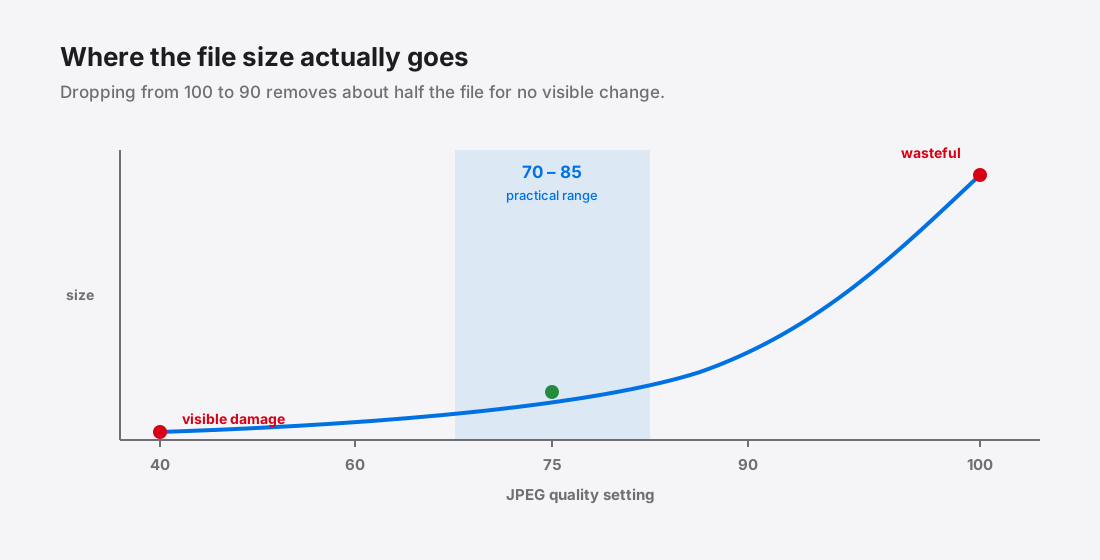
File size does not fall linearly as you lower quality. It falls steeply at the top of the range and then flattens out, which is what makes the very top so wasteful.
Broadly, for photographs:
- 95–100 — very large files for differences almost nobody can see. Going from 100 to 90 often removes half the file size and no visible quality. This range is for archival masters, not for anything you publish.
- 80–90 — visually indistinguishable from the original in normal viewing. The right home for photography portfolios, product shots, anything where the image is the point.
- 70–80 — the practical sweet spot for the web. Artefacts exist but you have to look for them. This is where most sites should sit.
- 60–70 — starting to show. Acceptable for thumbnails and small images where detail was never visible anyway.
- Below 60 — visible blocking and colour smearing in flat areas like skies and skin. Only for deliberately tiny previews.
Most export dialogs default to somewhere in the 90s. Moving that to the mid-70s for web images typically halves the file with no complaint from anyone.
Quality depends on the picture, not just the number
A single setting applied to every image is a compromise, because images differ in how much compression they can absorb.
Smooth gradients — clear skies, studio backdrops, out-of-focus backgrounds, skin — show artefacts early. Flat regions are exactly where blocking becomes visible, because there is no detail to hide it behind.
Busy, high-detail images — foliage, crowds, textured fabric, gravel — hide compression remarkably well. Visual noise masks the artefacts.
Images with hard edges and text are the worst case, and the reason the lossy/lossless distinction matters. JPEG produces visible ringing along sharp boundaries. Screenshots with UI text should not be JPEGs at all.
Set a size budget instead of a quality number
Because the right quality varies per image, picking one number for a whole batch means either over-compressing your smooth images or under-compressing your busy ones.
The alternative is to work backwards: decide what the image is allowed to weigh, and let the encoder find the highest quality that fits. A hero image might get 200 KB, an inline photo 100 KB, a thumbnail 20 KB. Each image then gets exactly the quality its content permits within that budget.
This is usually the better mental model for the web, where what actually matters is the page weight — see compressing to an exact file size for how the search works.
Do not iterate on an already-compressed file
A trap worth naming: exporting at 80, deciding it is too big, then re-exporting that file at 60. You now have an image compressed twice, which looks worse than a single pass straight to 60 at the same size.
Always go back to the original and change the setting there. Every export should be one compression away from the master.
Checking your own threshold instead of trusting a number
Published recommendations are averages across image types, and your content may sit well off that average. Establishing your own threshold takes about ten minutes and settles the question for good.
Pick three images that represent your worst cases: one with large smooth areas (a sky, a plain backdrop, skin), one busy and detailed, and one containing text or a hard-edged graphic. Export each at 90, 80, 75, 70 and 60.
View them at the size they will actually appear on the page, not zoomed to 200%. This matters enormously — artefacts that are obvious at 400% are invisible at display size, and optimising against a zoomed view wastes a great deal of file size defending against something nobody sees.
Find the lowest setting where you cannot tell the difference from the original at display size. That number is your default. For most photographic content it lands between 72 and 80; for smooth-gradient-heavy work it may be higher, and for busy textures noticeably lower.