HEIC explained: why iPhone photos will not upload
You attach a photo from your iPhone to a form, and it is rejected as an unsupported file type. The photo is fine. The format is HEIC, and a large part of the web still cannot read it.
What HEIC is
HEIC is Apple's name for images stored in the High Efficiency Image File Format, a container standardised by MPEG that holds still images compressed with HEVC1.
The compression is genuinely better than JPEG — commonly around half the file size at comparable visual quality. It also supports things JPEG cannot: transparency, image sequences, depth maps, 16-bit colour, and multiple images in one file, which is what makes Live Photos possible.
Apple made it the default capture format in iOS 11. On a phone that shoots thousands of photos, halving the storage per photo is a real benefit, and inside the Apple ecosystem everything reads it transparently. The friction only appears at the boundary.
Why the rest of the web cannot read it
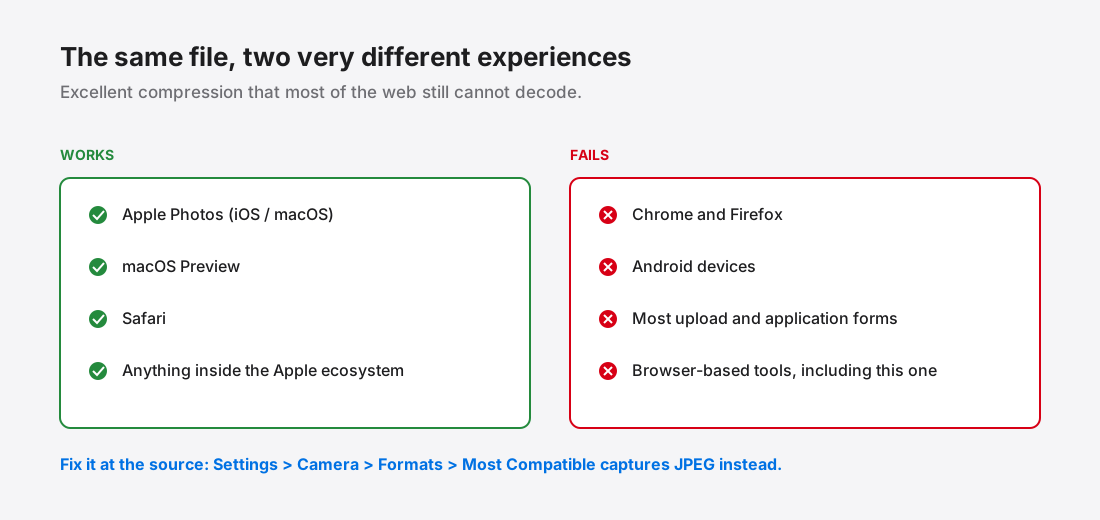
Browser support is the problem. Safari added HEIC support; Chrome and Firefox have not shipped it for general web use2. Patent licensing around HEVC is the widely cited reason, and it is why the same underlying compression that struggled to spread as an image format has been sidestepped by royalty-free alternatives.
The practical result is a format that works perfectly on the device that created it and fails at every boundary: upload forms, older Windows installs, Android devices, and any web tool that relies on the browser to decode images.
This includes browser-based image tools, PixSqueeze among them. It will accept a .heic file and hand it to the browser to decode; in Safari that generally works, and in Chrome or Firefox the decode fails and you get a clear error on that row rather than a silent failure. That is an honest limitation of doing the work in the browser, not something a client-side tool can engineer around.
Stop the problem at the source
The cleanest fix is to stop generating HEIC files you will have to convert later.
On iOS, Settings → Camera → Formats offers High Efficiency and Most Compatible. Choosing Most Compatible captures JPEG instead. You lose the storage saving and gain files that work everywhere. For most people who hit this problem more than once, that is the right trade.
Separately, Settings → Photos → Transfer to Mac or PC set to Automatic converts to JPEG when transferring off the phone, while keeping HEIC on the device.
Converting files you already have
For photos already sitting in HEIC:
- On iOS, copying photos out of the Photos app into the Files app converts them to JPEG in the process. Emailing a photo to yourself usually does the same.
- On macOS, Preview exports to JPEG directly, and can do it in bulk from a multi-file selection.
- On Windows, HEIC support depends on a codec being installed; recent versions handle it in Photos, older ones need the extension from the Store.
- In Safari, browser-based converters work, because Safari can decode the format natively.
Once converted to JPEG, the file is ordinary and everything else applies — the quality setting to use and, if it is going on a website, whether to go on to WebP.
What to convert to
Convert to JPEG when the goal is compatibility — a form upload, an email attachment, a document submission. It is the format everything reads.
Convert to WebP when the destination is your own website. It keeps most of HEIC's efficiency advantage and, unlike HEIC, every current browser displays it.
Converting HEIC to PNG is almost always a mistake. The source is a compressed photograph, so the data is already lossy; wrapping it in a lossless container just produces a very large file with no quality recovered. Why PNG files get so large explains why.
What you lose by converting, and what you do not
Converting HEIC to JPEG is lossy-to-lossy, so it is worth knowing what actually changes.
You lose file size efficiency. The JPEG will typically be larger than the HEIC for equivalent visual quality. That is the trade you are making for compatibility.
You lose the extras. Depth maps, Live Photo motion, image sequences and any transparency do not survive into JPEG. If the photo is a Live Photo, you get the still frame.
You lose a generation. The HEIC was already lossy; the JPEG re-encodes the decoded result, so a small amount of additional quality goes. Exporting at a high quality setting keeps this negligible — this is one case where erring high is worth it, since you only pay it once.
You usually do not lose metadata. EXIF, including GPS, generally carries across. If the point of converting is to share the photo, that is worth knowing: stripping metadata is a separate step that conversion does not do for you by default.
References
- High Efficiency Image File FormatWikipedia↑
- HEIF/HEIC image format — browser supportCan I use↑