What image dimensions should you use?
Compression gets all the attention, but the single largest saving available on most images is simpler: they are far bigger than the space they are displayed in. A 4000-pixel photo in an 800-pixel column is throwing away 96% of the data it made you download.
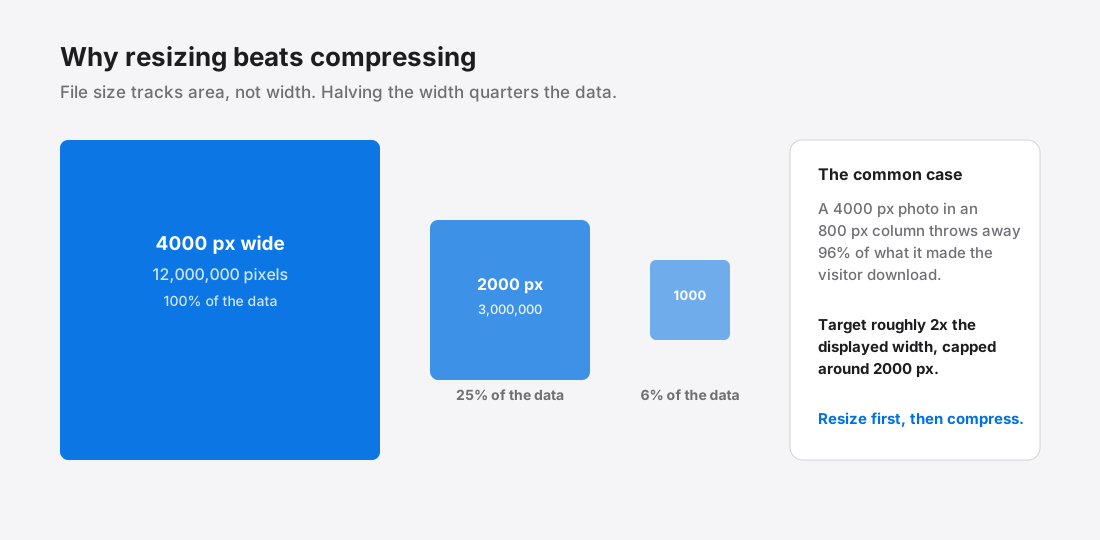
Why dimensions dominate file size
File size tracks pixel count, and pixel count is area — width times height. That makes the relationship quadratic, which is deeply unintuitive and the reason resizing wins so decisively.
Halve the width of an image and you do not halve the file. You quarter it, because you halved both dimensions. A 4000×3000 photo holds twelve million pixels. At 1000×750 it holds 750,000 — one sixteenth of the data, from one change, before any compression is applied at all.
This is why an over-large image cannot be rescued by compression alone. You can push the quality down until artefacts show and still not reach what a correctly-sized image achieves at quality 80.
Finding the width an image is actually displayed at
Open the page in a browser, right-click the image, and choose Inspect. The browser reports both the intrinsic size (the file's real pixels) and the rendered size (the CSS pixels it occupies). If the first is much larger than the second, the difference is waste.
Then account for high-density screens. A display with a device pixel ratio of 2 draws two physical pixels per CSS pixel, so an image rendered in an 800px slot benefits from roughly 1600px of real image data. Beyond 2× the returns fall off sharply — the difference between 2× and 3× is very hard to see and costs another substantial chunk of bytes.
A serviceable rule: target twice the CSS display width, capped at about 2000px for full-width imagery.
Sensible starting numbers
These are defaults to adjust, not laws:
- Full-width hero — 1600–2000px wide. This is also usually your LCP element, so it is the one image worth spending bytes on carefully; see fixing Largest Contentful Paint.
- In-article image — roughly twice your content column width. For a typical 700–800px column, 1400–1600px.
- Product or card thumbnail — 600–800px.
- Avatar or icon — 128–256px. These are routinely shipped at 1000px+ for a 40px circle.
- Logo — SVG where possible, so the question disappears entirely. See SVG versus raster.
One size does not fit every screen
A single width is a compromise between a phone and a large desktop display. An image sized for the desktop is wasteful on a phone; one sized for the phone looks soft on the desktop.
The proper fix is to provide several widths and let the browser choose based on the viewport and pixel density it actually has. That is what srcset is for1, and the responsive images guide covers the syntax.
If that is more machinery than a given project warrants, pick a width that serves your most common visitor rather than your largest possible one. Check your analytics for the split before assuming it is desktop.
Resize first, compress second
Order matters. Resizing after compressing means compressing data you were about to discard, and then compressing again — with the extra generation loss that implies.
Resize to the target dimensions, then compress the resized image once. And keep the full-resolution original somewhere untouched, because you will eventually need a larger version and you cannot recover pixels from a downscaled copy. A batch workflow builds this in as a rule.
Pixel dimensions, display size and DPI are three different things
These get used interchangeably and are not the same, which is the source of a lot of confusion — particularly around print advice leaking into web work.
Pixel dimensions are what the file contains: 1600×1200 means 1,920,000 pixels. This is the only one that determines file size.
Display size is how large it renders, set by CSS, and independent of the file's pixel count. The same file can render at 400px or 1200px wide.
DPI or PPI is a print instruction. It is a number stored in the file's metadata that says how large to print it, and browsers ignore it entirely. Setting an image to 300 DPI does nothing on the web — it does not change the pixels, the file size, or how it renders. The advice to “save web images at 72 DPI” is a holdover from a screen convention that stopped being true decades ago.
For web work: think only in pixel dimensions, and let CSS handle display size.
References
- Responsive imagesMDN Web Docs↑