SVG vs PNG vs JPG: when vector wins
Most format arguments are about trade-offs. This one mostly is not: for a certain kind of image, vector is simply the right answer, and using a raster format is throwing away quality and bytes at the same time.
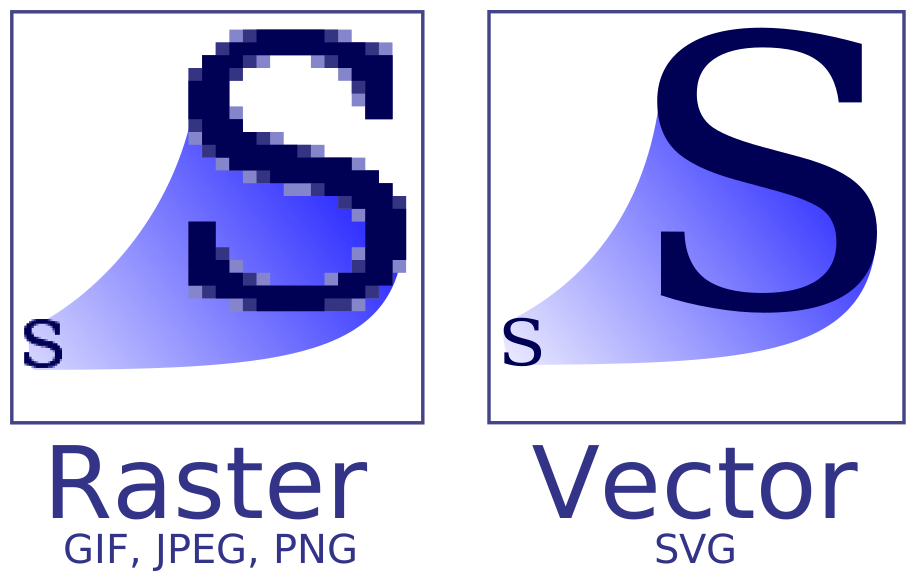
Two fundamentally different things
PNG and JPG are raster formats: a grid of pixels, each with a colour. Resolution is baked in at export1.
SVG is vector: an XML description of shapes — paths, circles, fills2. There are no pixels until the browser draws it, so it renders sharp at any size, on any display density.
That difference decides almost every case.
What SVG is genuinely better at
- Logos. One file, crisp from favicon to billboard. A PNG logo needs a variant per size and still blurs when someone zooms.
- Icons. Usually a few hundred bytes. Colour can be changed with CSS, so one file serves light and dark themes.
- Diagrams and charts. Text inside an SVG stays real text — selectable, searchable, readable by screen readers.
- Flat illustration. Large areas of solid colour are exactly what vector describes efficiently.
What SVG is bad at
Photographs. A photograph is not made of shapes, and describing one as vector paths produces a file far larger than a JPEG of the same picture, with worse results3.
The rule of thumb: if a camera made it, it is raster. If a design tool made it and it is mostly flat colour and geometry, it is a candidate for vector.
Anything in between — a screenshot, a texture, an illustration with photographic gradients — is raster, and the choice is then between the formats covered in the format guide.
SVG files are text, which cuts both ways
Because SVG is markup, it compresses extremely well with normal HTTP compression, and you can edit it in a text editor.
It also means design tools leave a great deal of junk in exports: editor metadata, empty groups, absurd coordinate precision. An unoptimised export is routinely several times larger than it needs to be — running it through an SVG optimiser is close to free bytes.
And because it is markup that the browser parses, an SVG from an untrusted source can carry scripts. Treat SVG uploads from users with the same caution as any other executable content.
A decision you can make in five seconds
- Logo, icon, diagram, flat illustration → SVG
- Photograph → WebP, or JPEG when it has to travel (which and why)
- Needs real transparency and is not a photo → PNG, or WebP
- Screenshot of an interface → PNG or WebP, never JPEG (text goes mushy)
When SVG becomes the wrong choice
SVG wins so decisively for logos and icons that it gets over-applied, and its failure mode is genuinely bad.
An SVG's size scales with the number of paths and points, not with display dimensions. A traced photograph or a highly detailed illustration can contain tens of thousands of path nodes and end up far larger than a JPEG of the same picture — and slower, because every node has to be parsed and rendered rather than blitted.
The line is roughly: geometric, flat-coloured, few distinct shapes, needs to scale — SVG. Photographic, continuous-tone, complex gradients — raster. “Auto-traced from a photo” is almost always the wrong answer.
SVG carries markup, and markup carries risk
An SVG is a document, not an opaque blob, which has two consequences worth knowing.
First, editors leave a lot behind: layer names, editing metadata, comments, unused definitions. Running an optimiser typically removes 30–60% of a hand-exported file with no visual change.
Second, and more importantly: SVG can contain scripts. An SVG loaded through <img> is sandboxed and cannot execute them, but one inlined directly into a page runs in your page's context. Never inline SVG from an untrusted source. For user-uploaded SVG, either serve it exclusively through <img> or sanitise it — this is a real vector, not a theoretical one.
Three ways to put an SVG on a page
The method changes what the SVG can do, and choosing wrongly is the source of most “why will my SVG not change colour” confusion.
As <img src="logo.svg">. Simplest, cacheable as a separate file, and sandboxed — scripts inside it cannot run. The trade-off is that CSS on the page cannot reach inside it, so you cannot recolour it with currentColor. This is the right default, and the only safe option for any SVG you did not author.
Inline in the HTML. The markup becomes part of the document, so CSS and JavaScript can style and animate individual paths — this is how icons that inherit text colour work. The costs: it is not cached separately, it inflates every page that uses it, and it runs in your page's security context. Never inline an SVG from an untrusted source.
As a CSS background. Good for decorative elements. Not reachable by page CSS, and invisible to assistive technology, so never use it for anything carrying meaning.
For an icon that must match surrounding text colour, inline is the only option that works. For a logo used across a site, <img> is almost always right.
References
- Portable Network GraphicsWikipedia↑
- SVG: Scalable Vector GraphicsMDN Web Docs↑
- Image file type and format guideMDN Web Docs↑