Why is my PNG file so large?
A screenshot saved as PNG might be 200 KB. A photograph saved as PNG can easily be 8 MB — forty times larger, for a picture that would be a few hundred kilobytes as a JPEG. The format is not broken; it is being asked to do something it was never designed for.
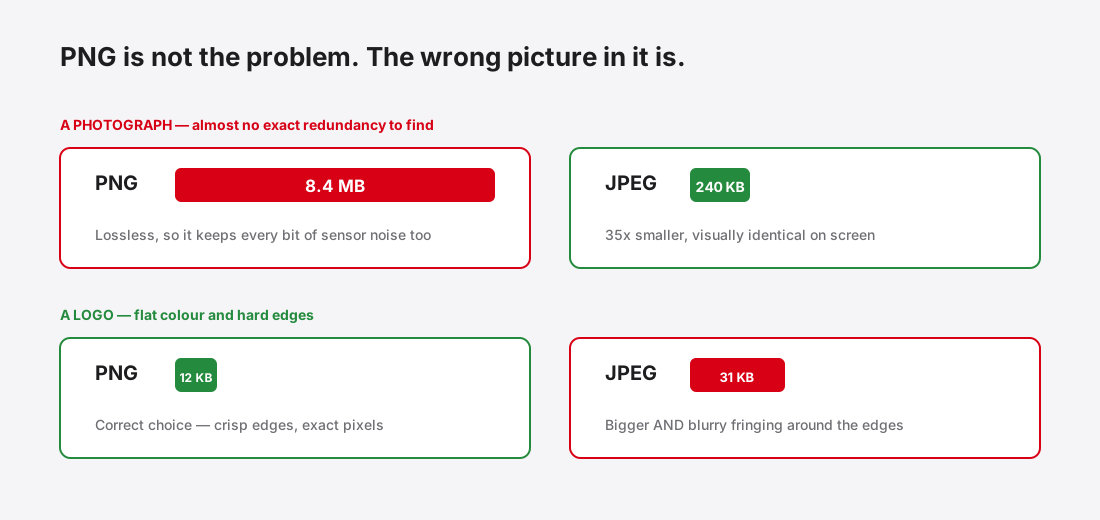
PNG is lossless, and photographs punish that
PNG never discards image data. Every pixel you put in comes back out exactly1. Its compression works by finding exact redundancy — predicting each pixel from its neighbours and storing the difference, then running that through general-purpose compression.
That strategy is superb when neighbouring pixels really are similar or identical: flat colour, hard edges, repeated patterns. A logo, a screenshot of a form, a chart, a diagram.
In a photograph, essentially no two adjacent pixels are identical. Sensor noise alone guarantees it. There is almost no exact redundancy to find, so PNG stores something close to the full data — and the file is enormous. Meanwhile a lossy format looks at the same photo and correctly concludes that most of that variation is invisible to you. Lossy versus lossless covers the underlying mechanism.
The four things that actually inflate a PNG
- It is a photograph. By far the most common cause. The fix is not to optimise the PNG; it is to not use PNG.
- Unnecessary bit depth. A PNG can store 16 bits per channel. Almost nothing on the web needs more than 8, and the 16-bit version is roughly twice the size for no visible benefit.
- A full colour table where a small one would do. A logo with nine colours does not need 24-bit colour. Converting to an indexed palette can cut the file dramatically with zero visible change — this is what “PNG-8” means.
- Metadata and colour profiles. Editors embed colour profiles, thumbnails, editing history and timestamps. On a small graphic this can be a startling fraction of the file. Stripping it is safe for web images, and it also removes the metadata you may not want to publish.
What to use instead, by what the image is
- Photograph, no transparency — JPEG or WebP. Expect a 10× reduction or better.
- Photograph with transparency — lossy WebP. This is the case PNG traditionally forced you into and WebP genuinely solves: transparency and lossy compression at once.
- Logo, icon, or diagram — SVG if you have the vector source. It is resolution-independent and usually tiny. SVG versus raster covers when it applies.
- Screenshot with text — keep it lossless. PNG is correct here; just strip the metadata and consider an indexed palette.
- Simple graphic with few colours — indexed PNG-8, or SVG.
When PNG really is the right answer
It is worth being clear that PNG is not a bad format. It is the correct choice, and often the best available, for a specific set of images:
Anything where exact pixels matter — UI screenshots used in documentation, diagrams with thin lines, images containing readable text, pixel art, and any master file you will edit again. In all of those, the lossy alternatives introduce visible damage precisely where the value is.
The failure mode is not choosing PNG. It is choosing PNG by default, for everything, because it is the safe-sounding option in the export menu.
Common questions
Will re-saving a PNG make it smaller? Barely. PNG is lossless, so re-saving cannot discard image data. You may recover a little by stripping metadata or reducing bit depth, but if the file is large because it holds a photograph, no amount of re-saving as PNG will fix that.
Does resizing help a PNG? Enormously, and more than any other single change. File size tracks pixel count, so halving the width quarters the data before compression is considered at all. Choosing the right dimensions covers how to pick a target.
Is PNG-8 always smaller than PNG-24? For images with few distinct colours, yes, often dramatically. For photographs, converting to a 256-colour palette produces visible banding in gradients while still being far larger than a JPEG. It solves the wrong problem.
Should I convert existing PNGs on my site? Check which ones are actually costing you first. Sort your image directory by file size and look at the top of the list — a handful of oversized PNG photographs usually account for most of the waste, and the small interface graphics are fine where they are.
References
- Portable Network GraphicsWikipedia↑