How to remove metadata from photos before sharing
A photo file is not only a picture. Attached to it is a block of metadata your camera wrote automatically, and on a phone that routinely includes the exact coordinates where the shot was taken1.
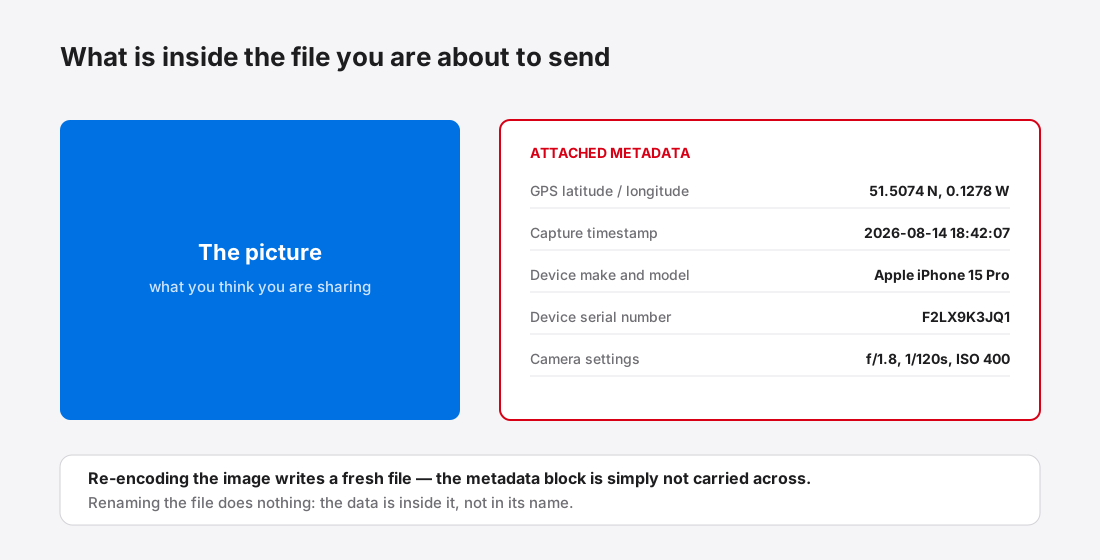
What is actually attached to your photos
The EXIF block written by phones and cameras typically carries the capture date and time to the second, the device make, model and often its serial number, full camera settings, the lens used, orientation, and — when location services were enabled — GPS latitude and longitude, sometimes with altitude.
Editing software adds more: the program used, an edit history, embedded colour profiles, and often a small preview thumbnail. That thumbnail is worth knowing about, because it is generated at import and is not always regenerated when you edit. Crop something out of a photo and the original framing can survive in the embedded preview.
What EXIF data contains goes through the fields in detail. The short version: more than most people expect, written by default, invisible unless you go looking.
Why it matters more than it sounds
The obvious risk is location. A photo posted from home has your home coordinates in it, accurate to a few metres. A set of photos posted over time draws a map of where you live, work, and take your children to school.
The less obvious risk is correlation. Device serial numbers and timestamps link images together. Two photos posted to unrelated accounts under different names, both carrying the same camera serial, are demonstrably the same camera.
This is worth calibrating rather than panicking about. Most large social platforms strip EXIF on upload, so a photo posted to a major network is usually already clean. The exposure is everywhere else: files emailed as attachments, uploaded to forums and marketplaces, sent through messaging apps that preserve originals, attached to job applications, or published directly to your own website. Those keep whatever you gave them.
Where stripping happens, and where it does not
Some things remove metadata as a side effect, which makes it easy to assume you are covered when you are not:
- Screenshotting a photo removes EXIF, and also degrades the image and changes its dimensions. It works, crudely.
- Most compression and format conversion drops EXIF, because the encoder writes a fresh file and does not carry the old metadata block across. Converting to WebP generally leaves it behind.
- Resizing in a basic editor may or may not preserve it. This varies by program and is not something to rely on without checking.
- Renaming the file does nothing at all. The metadata is inside the file, not in its name.
Both major desktop operating systems can strip properties from a file's own info panel, which is fine for a handful of images and tedious beyond that.
Doing it without shipping the photo somewhere first
There is an obvious tension in using an online tool to remove sensitive metadata: to strip the GPS coordinates, you upload the file — coordinates included — to someone else's server.
For most images that is a fine trade. For the ones where you specifically care about the location data, it defeats the purpose. A tool that processes the file inside your browser never transmits it, which makes the question moot rather than a matter of trust. Client-side versus server-side compression explains the structural difference.
PixSqueeze re-encodes images in the browser, and the metadata block is not carried into the new file. That is a property of how the encoding works, not a feature bolted on top.
Keep one copy that still has it
Metadata is not purely a liability. Capture dates are what let photo libraries sort chronologically; GPS is what powers map views of your own archive; camera settings are how photographers learn from their own work.
The right pattern is not to destroy it — it is to keep an untouched master with everything intact, and to publish stripped copies. Strip on the way out, not at the source. That is the same rule as never processing your originals, for a different reason.
Checking what a file actually contains
It is worth verifying rather than assuming, particularly the first time you rely on a given tool.
On Windows, right-click the file, choose Properties, then the Details tab. Location, camera and timestamp fields appear there, and the same panel offers “Remove Properties and Personal Information”.
On macOS, open the image in Preview and choose Tools → Show Inspector; the tabs there include EXIF and, when present, GPS.
The useful habit is to check the file you are about to send, not the one you started with. That is the only version that matters, and it catches the case where a step you assumed was stripping metadata quietly was not.
One caveat on verification: a viewer showing no GPS tab does not always prove the field is absent — some viewers only surface fields they recognise. If the stakes are high, re-encoding the image to a new file is a more reliable guarantee than trusting a viewer's summary, because the new file is written from pixels alone.