Speed up WordPress by fixing its images
WordPress makes image bloat unusually easy to create and unusually easy to fix. The single most effective change costs nothing and takes no plugin.
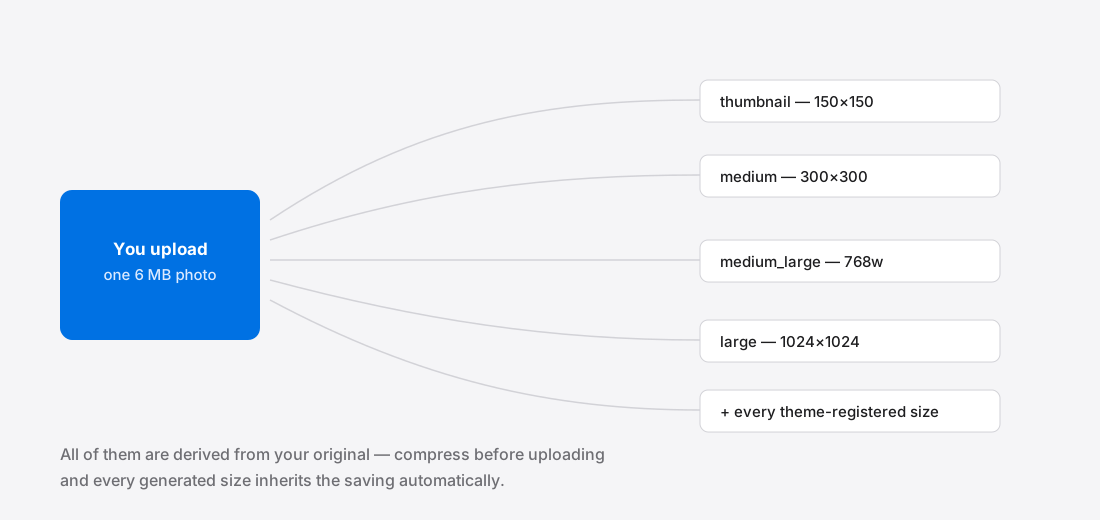
What WordPress does with your upload
Upload one image and WordPress generates several1 — thumbnail, medium, medium_large, large, and whatever additional sizes your theme registers. Six or more files on disk from a single upload is normal.
All of them are derived from your original. Upload a 6 MB camera JPEG and WordPress produces six large derivatives of a needlessly large file. Your uploads folder grows faster than you expect, backups slow down, and every one of those derivatives is heavier than it needs to be.
Compress before uploading and every generated size inherits the saving automatically.
Prune the sizes you do not use
Most themes register image sizes that nothing on the site ever displays2. Every one of them is generated for every upload, forever.
Look at what your theme and plugins register, and remove the ones nothing uses. On a site with thousands of images this alone can reclaim a substantial amount of disk and cut upload processing time noticeably.
Do this before a bulk regeneration, not after, or you will generate the files twice.
Plugins: when they help and what they cost
ShortPixel, Smush, Imagify and EWWW all work. They earn their place in two situations: you have an existing library of thousands of unoptimised images to fix retroactively, or you have a team uploading whatever comes off their phone and no way to train them.
The costs are worth knowing. Most send your images to the vendor's servers for processing — a third-party data flow you may not want, particularly for client work. Most meter usage, so a bulk run becomes a bill. And each is more PHP executing on every request, plus another thing to update and another possible conflict.
If you are the person uploading, compressing beforehand removes all of that.
WordPress and WebP
WordPress has accepted WebP uploads since version 5.8, and they behave like any other image.
Two things to check before converting a library. Some older themes hard-code the formats they expect, so test a single image first. And some managed hosts still restrict WebP at the server level — if an upload is rejected, that is usually why, and support can normally enable it.
A workflow that holds
- Resize to 1920px maximum before uploading. Larger than any theme displays.
- Convert to WebP at quality 75.
- Upload the optimised file as the source, never the camera original.
- Set a maximum upload size in your host panel so nobody can quietly upload a 12 MB file.
- Prune unused registered image sizes, once.
Five steps, four of which are one-off. After that the site stays fast without anybody thinking about it — and the payoff shows up in Largest Contentful Paint3, the metric most WordPress sites fail on. See the LCP guide.
The plugin question, answered honestly
Optimisation plugins fall into two groups, and the distinction matters more than the feature lists suggest.
Server-side services — ShortPixel, Imagify, Smush Pro, EWWW in its cloud mode — upload each image to the vendor's servers, compress it there, and send it back. They work well and cost either money or quota. The trade is that every image you process, including client work and anything unpublished, transits a third party. What that actually means is worth understanding before agreeing to it.
Local processing uses the server's own image libraries. No third party, no quota, but it consumes your hosting CPU — which on cheap shared hosting is exactly the resource you have least of.
The option people overlook is doing it before upload. An image optimised on your own machine needs no plugin, no quota and no server CPU, and WordPress will generate its derivatives from an already-good source.
Thumbnail regeneration is where the disk goes
WordPress generates a set of derivatives for every upload — and themes and plugins register more. It is common to find a site producing eight or more files per image without anyone having chosen that.
Upload 500 photos to a site with nine registered sizes and you have 4,500 files. The originals are usually the smaller part of the problem.
Audit what is actually registered, then remove the ones nothing renders. The saving is not just disk: every derivative is CPU at upload time and a backup that takes longer. Do this before a bulk upload, because sizes removed later leave their already-generated files behind.
Getting the source right beats fixing it afterwards
Everything above is remediation. The durable fix is upstream: never upload the camera original.
Resize to a sensible maximum — 1920px wide covers essentially every theme — and compress before the file reaches the media library. WordPress then builds every derivative from a good source instead of from a 6 MB original. Choosing dimensions covers picking that ceiling.
Set a maximum upload size in your host panel as a backstop, so a contributor who has not read any of this cannot quietly undo it. A hard limit that produces an error is more reliable than a convention everyone is supposed to remember.
References
- Responsive ImagesWordPress Developer Resources↑
- OptimizationWordPress Documentation↑
- Largest Contentful Paint (LCP)web.dev↑